Say you have Ubuntu and Windows installed as a dual-boot system, and then you reinstall Windows. The Grub boot entry will very likely be overwritten by Windows Boot Manager, and at that point you can’t get into Ubuntu anymore. But don’t panic. You can fix the grub2 boot entry with the steps below, and you don’t need to install any extra software.
Making an Ubuntu USB Boot Drive
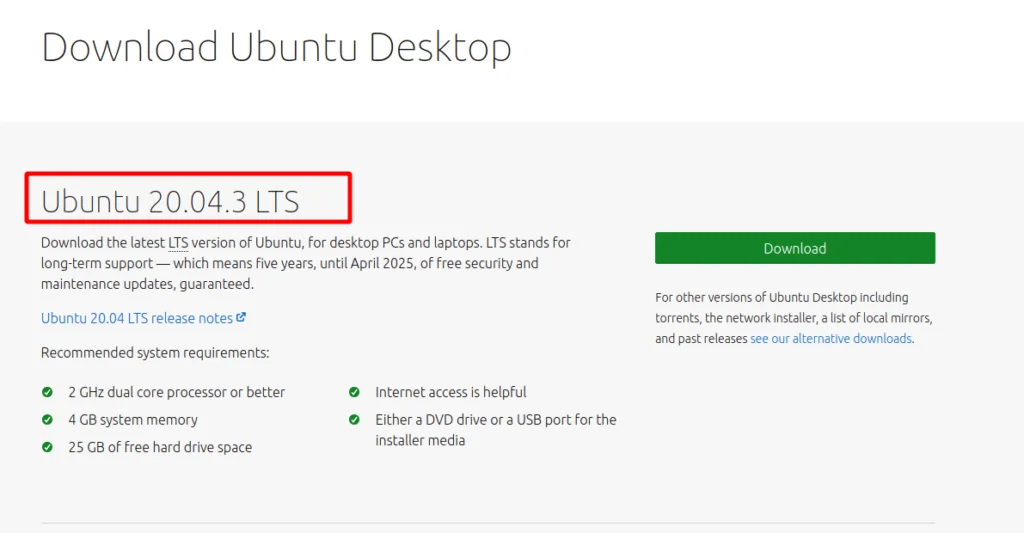
To repair the boot entry, we need the software tools that come with Ubuntu. We can’t get into the original Ubuntu system for now, but we can use the image written to an Ubuntu USB drive to get a basic, working Ubuntu environment. Download the image file from the Ubuntu website.
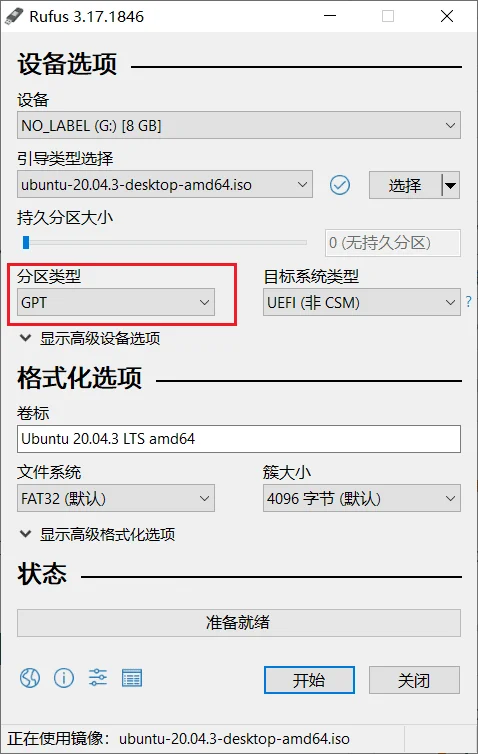
To make the USB boot drive, you can use rufus, which is small, easy to use and doesn’t need to be installed. With rufus you can quickly create a USB boot drive. Just make sure you choose GPT mode.
Booting from the USB Boot Drive
Restart the computer and choose the USB drive in the BIOS boot settings. When the Ubuntu installer comes up, select Try Ubuntu on the installation screen to enter Ubuntu Live.
Rebuilding Grub2
Use fdisk to find the EFI partition and the partition that holds the /boot mount point (if you didn’t set up a separate /boot mount point, use the / mount point instead). Mount the partition that holds the /boot mount point to /mnt (my partitions are on an NVMe SSD).
% sudo mount /dev/nvme0n1p6 /mnt/
Mount the EFI partition. Here you need to know which partition on your disk is the EFI system partition (for me it’s the fifth one).
% sudo mount /dev/nvme0n1p5 /mnt/boot/efi
Bind the other directories we need
% sudo mount --bind /dev /mnt/dev
% sudo mount --bind /dev/pts /mnt/dev/pts
% sudo mount --bind /proc /mnt/proc
% sudo mount --bind /sys /mnt/sys
Change the root directory to /mnt
% sudo chroot /mnt
Repairing the Grub2 Boot Entry
The command you need to run here is different for 32-bit and 64-bit systems. Both are given below. 32-bit systems:
% sudo grub-install --target=i386-efi /dev/nvme0n1
64-bit systems:
% sudo grub-install --target=x86_64-efi /dev/nvme0n1
After running one of the commands above, run a recheck as well
% grub-install --recheck /dev/nvme0n1
Cleanup afterwards (optional)
% exit
% sudo umount /mnt/sys
% sudo umount /mnt/proc
% sudo umount /mnt/dev/pts
% sudo umount /mnt/dev
% sudo umount /mnt
Then reboot. You’ll see that you can get into the grub2 menu again, and grub2 has found both Ubuntu and Windows Boot Manager.
Rebuilding the Windows Boot Manager Entry in Grub2
Restart the computer, boot into Ubuntu through Grub, and run the following command to regenerate the configuration file
% sudo update-grub